
MX Player
Screenshots
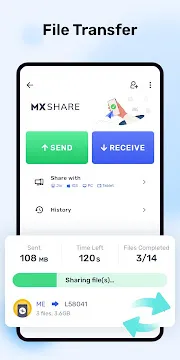

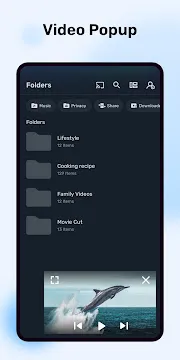
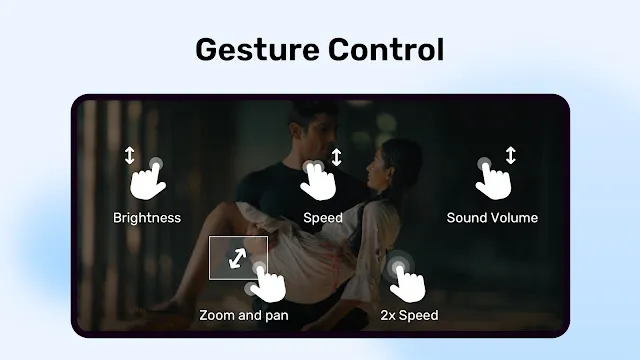
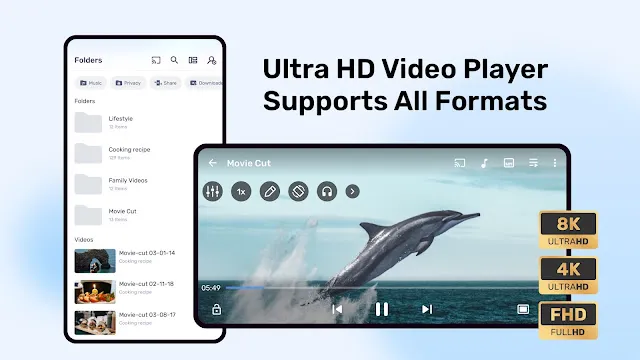
MX Player is a powerful and flexible video player app designed for Android devices. It is known for its smooth playback, high-quality performance, and ability to handle almost any video or audio format. Whether you watch movies, TV shows, or short clips, MX Player makes playback easy and enjoyable.
The app is simple to use and offers smart features such as subtitles support, gesture controls, and customizable playback options. It works on both low-end and high-end Android phones, making it suitable for all users. With MX Player, you can enjoy your media without interruptions or complicated settings.
MX Player for Android – What Is MX Player? A Quick Overview
MX Player is a well-known media player app designed for Android devices. It was first released to provide smooth, high-quality video playback on smartphones when most built-in players lacked advanced features. Over time, it became one of the most trusted video players in the Android community.
Its main purpose is simple: to play local video and audio files stored on your device.
It is not a streaming platform like Netflix or YouTube.
Instead, MX Player focuses on delivering a reliable, fast, and flexible playback experience for files you already have.
Primary Function of MX Player
At its core, MX Player is:
- A local media player for video and audio files.
- Designed to open files stored on internal storage, SD cards, or downloaded media.
- Built to handle everything from low-resolution clips to high-quality HD and 4K content.
It does not require internet access to play files.
This makes it useful for users who watch downloaded movies, offline videos, or personal recordings.
Why MX Player Matters
- Works smoothly on both new and older Android devices.
- Plays nearly every video or audio format without extra tools.
- Offers advanced playback controls and subtitle support.
These qualities helped MX Player become one of the most downloaded and widely used media players on Android.
Who Should Use MX Player?
MX Player is ideal for:
- Movie and series lovers
- People who download or share videos
- Users who want a fast, smooth, and reliable media player
- Parents needing child-friendly controls
Getting Started with MX Player
Using MX Player is incredibly straightforward. After installing MX Player APK from our website, the app will automatically appear in your video selection options. Simply tap on any video file stored on your device. Then, choose MX Player as your default app to open it.
You can then enjoy a highly customizable viewing experience. For instance, use gestures to adjust brightness and volume. You can also easily fast-forward or rewind with a simple swipe. In short, it gives you complete control over your media.
In conclusion, MX Player is more than just a simple video player. It is a robust, feature-packed tool that enhances your mobile entertainment. It solves the common problem of incompatible file formats. Download it today to unlock the full potential of your Android device’s media library.
Your Guide to Installing MX Player on Android
MX Player is a powerful video player for Android. It handles almost any video format you throw at it. Furthermore, it offers smooth playback and useful subtitle support.
This guide will show you how to safely get and install the MX Player APK.
Why Install MX Player from an APK?
First, you might wonder why you wouldn’t just use the Google Play Store. There are a few key reasons.
- Newer Versions: Sometimes, the latest APK is available online before it reaches the Play Store.
- Region Restrictions: The app might not be available in your country’s Play Store.
- Device Compatibility: Your specific device might be incompatible with the Play Store version.
However, downloading APKs from the web requires caution. You must always use a trusted source.
Step 1: Prepare Your Android Device
Before you download anything, you need to adjust one security setting. Android blocks installations from unknown sources by default to protect you.
Here is how to allow it.
- Open your Settings app.
- Scroll down and tap on Security & Privacy (this may be called “Biometrics and security” or just “Security” on some phones).
- Look for the option called Install unknown apps or Special app access.
- Select the browser you will use for the download (like Chrome or Firefox).
- Finally, toggle the switch to Allow from this source.
This step gives that specific app permission to install new applications.
Step 2: Download the MX Player APK File
Next, it’s time to find the APK file. Always download from Filetomob.com website to avoid malware.
- Open your web browser.
- Go to Filetomob.com.
- Use the search bar to find “MX Player APK Download”.
- Choose the latest version.
- Tap the Download APK button.
Your browser will now download the file. Wait for the download to finish completely.
Step 3: Install the APK on Your Device
Once the download is complete, you can proceed with the installation.
- Pull down your notification shade and tap on the downloaded file. Alternatively, open your Files or Downloads app to find it.
- A new screen will appear. It shows the permissions the app requires.
- Carefully review these permissions.
- Then, tap the Install button.
The installation process will begin. It usually only takes a few moments.
Troubleshooting Common Installation Problems
Sometimes, the installation might fail. Don’t worry. Here are simple solutions.
- “App not installed” error: This often means the APK file is corrupt. Simply delete it and download a fresh copy from a different trusted source.
- Insufficient storage: Check that you have enough free space on your device. Clear some cache or old files if needed.
- Blocked by Play Protect: Google Play Protect may show a warning. Since you are using a trusted source, you can usually tap “Install anyway” to proceed.
You’re All Set!
Congratulations! MX Player is now ready to use. You can find its icon in your app drawer. Open it to start watching your videos with one of the best players available.
How-To Master MX Player For Android in 60 Seconds
MX Player is simple, fast, and powerful. With just a few quick actions, you can control videos, subtitles, background playback, and even enable a safe mode for kids. This short guide shows you how to use the most important features in under one minute.
Step 1: The Basics (Gesture Controls)
MX Player uses gesture controls to make video watching easier.
Here are the four main gestures:
- Swipe Up/Down (Left Side): Adjust screen brightness.
- Swipe Up/Down (Right Side): Control volume.
- Swipe Left/Right: Move quickly forward or backward in the video.
- Pinch to Zoom: Zoom in or out instantly.
These gestures help you control playback without pressing buttons.
Step 2: How to Manage Subtitles (The #1 Most Used Feature)
MX Player is known for excellent subtitle support.
Here’s how to use it:
- While playing a video, tap the Subtitle (speech bubble) icon.
- Select Open to load a subtitle file already stored on your device.
- To download subtitles, choose Online Subtitles > Search.
- Pick the file you want and tap Download.
Fix Subtitle Timing
If the subtitles appear too early or too late:
- Open the subtitle menu again.
- Tap Synchronization.
- Adjust timing forward or backward until it matches the audio.
This ensures comfortable and accurate viewing.
Step 3: Using Background Play & Picture-in-Picture (PiP)
These tools are perfect for multitasking or listening-only playback.
Background Play
Allows audio to keep playing even when you leave the app:
- Go to Settings > Player.
- Enable Background Play.
Useful for lectures, music videos, or podcasts.
Picture-in-Picture Mode (PiP)
Watch your video in a small floating window:
- Start playing a video.
- Tap Home (if PiP is enabled on your device).
- The video will shrink into a small moveable window.
You can now browse apps while watching.
Step 4: Enabling the Kids Lock (Parent-Friendly Feature)
Kids Lock prevents accidental touches, exiting the video, or opening other apps.
- Play a video.
- Tap the Lock icon on the playback screen.
- The screen and buttons become protected.
This is especially helpful when kids watch cartoons, so they don’t make calls, open apps, or delete files by accident.
Conclusion
MX Player makes video playback simple and efficient.
With quick gestures, smart subtitle tools, background play, PiP, and Kids Lock, you can take full control in just a few taps.
Mastering the app only takes a minute, but it improves every video-watching experience.
Core Features of MX Player for Android
MX Player is one of the most popular media players for Android devices. It is known for smooth video playback, wide format support, and easy-to-use controls. The app is suitable for both casual viewers and advanced users who want full control over their media experience.
Wide Video and Audio Format Support
MX Player supports almost all major video and audio formats.
You can play files like:
- MP4
- MKV
- AVI
- FLV
- MOV
- MP3 and more
This makes MX Player reliable for streaming, downloading, and offline playback.
Hardware and Software Acceleration
The app uses hardware acceleration for faster and smoother playback.
It also offers software decoding for older devices.
As a result, videos run smoothly even in high resolution.
Multi-Core Decoding
MX Player supports multi-core processing.
This improves performance on modern smartphones.
It can handle large and heavy video files with less lag.
Easy Gesture Controls
MX Player provides intuitive gestures:
Swipe up/down to control volume or brightness
Swipe left/right to seek video position
Pinch to zoom in and out
These controls make watching videos more comfortable.
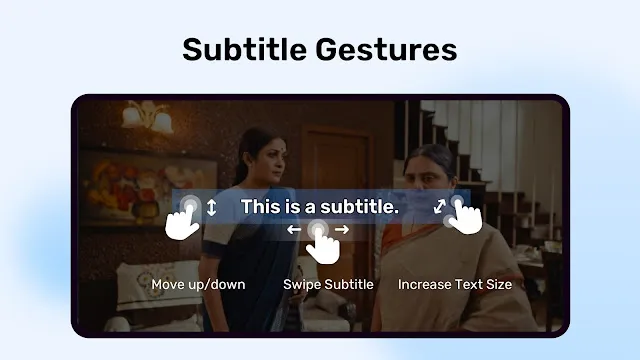
Advanced Subtitle Support
MX Player supports many subtitle formats, including SRT, ASS, and SUB.
You can:
Load external subtitles
Change text size, style, and color
Sync subtitles if timing is off
This is useful for movies, shows, and foreign-language videos.
Kids Lock & Privacy Tools
The Kids Lock feature prevents accidental taps.
It keeps children from closing the video or accessing other apps.
This makes MX Player suitable for family use.
Offline and Local Media Playback
MX Player works perfectly offline.
You can watch downloaded videos anytime.
No login or internet connection is required for basic media playback.
Online Streaming (Optional)
MX Player also offers online streaming of shows, music videos, and short clips.
However, this part of the app may differ depending on your region.
MX Player Additional Core Features
Network Streaming Support
MX Player allows playback of videos directly from online links.
You can stream content using URLs or network shares (LAN / SMB).
This is useful when accessing media stored on a computer or server.
Playback Speed Control
You can adjust video speed easily.
Slow down scenes to see details or speed up playback to save time.
The audio remains clear even when speed changes.
Background Playback
MX Player can keep audio playing while the app runs in the background.
This is helpful for music videos, lectures, or podcasts.
You can continue using your phone while listening.
Picture-in-Picture (PiP) Mode
MX Player supports PiP mode on Android.
You can watch videos in a small floating window.
This lets you multitask while still keeping the video in view.
File Manager Integration
MX Player detects and organizes local video files automatically.
Folders are displayed clearly for easy navigation.
You can also rename, move, or delete files directly inside the app.
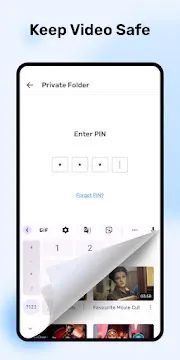
Private Folder
MX Player includes a secure folder option.
You can lock specific videos behind a password or fingerprint.
This helps protect private or personal media.
Audio Boost
The app can increase volume beyond the normal limit.
This is useful when watching videos with low sound levels.
Audio remains clear while being amplified.
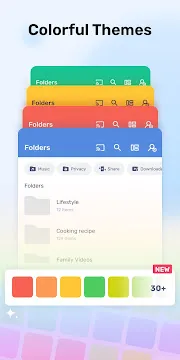
Customizable Themes and Interface
MX Player offers flexible appearance settings.
You can switch between light and dark themes.
You can also modify control layouts to fit your style.
Conclusion
MX Player continues to be one of the most trusted media players on Android.
It provides smooth playback, powerful controls, and advanced tools like background play, subtitle customization, and secure folders.
With support for nearly every format and device, it delivers a complete and comfortable viewing experience.
MX Player: Advanced Tips & Tricks for Power Users
You know MX Player is a great video player. But are you using it to its full potential? Go beyond basic play and pause. Unlock a new level of control with these advanced tips.
First, let’s improve your setup.
Tame Your Video Library with the “Folders” Tab
Is your video library messy? The “Folders” tab is your best friend. It gives you a file manager’s view of your device.
- Find videos faster. Instead of scrolling through one giant list, you can navigate directly to the specific folder where your videos are stored.
- Hide private folders. You can easily exclude folders you don’t want MX Player to scan. Just tap the three dots in the corner and uncheck folders you want to keep private.
- Create a clean, organized space. This method is perfect if you keep videos for different purposes in different folders (e.g., Work, Personal, Downloads).
Next, let’s explore powerful playback controls.
Control the Pace with Playback Speed
The playback speed control is a game-changer. It is not just for speeding up videos. You can use it in many smart ways.
- Speed up slow content. Watch lectures, tutorials, or podcasts at 1.5x or 2x speed to save time.
- Create slow-motion moments. Slow down to 0.5x to analyze a sports play or appreciate a beautiful movie scene in detail.
- Find the perfect balance. Adjust the speed to match your viewing preference for any type of content.
Now, let’s enhance what you hear.
Fine-Tune Your Audio with the Equalizer
Great video needs great audio. MX Player’s built-in equalizer lets you customize your sound.
- Access the equalizer. Simply tap the three dots on the player screen, go to “Audio Track,” and select “Equalizer.”
- Choose a preset. Select a mode like “Rock,” “Pop,” or “Classical” for an instant audio upgrade.
- Create a custom sound. Manually adjust the sliders to boost the bass, clarify the dialogue, or create a sound profile that’s perfect for your headphones.
Furthermore, you can control the player without even touching the screen.
Use Gesture Controls Like a Pro
Gesture controls make you feel like a video wizard. You can control almost everything with a simple swipe.
- Brightness Control. Swipe up or down on the left side of the screen to adjust brightness.
- Volume Control. Swipe up or down on the right side of the screen to change the volume.
- Seek Forward/Backward. Swipe left or right on the screen to skip forward or rewind. A quick swipe jumps 10 seconds.
- Zoom In/Out. Pinch with two fingers to zoom in and out of a video.
Finally, let’s talk about safe and uninterrupted viewing.
Keep Kids Safe with the Kids Lock Feature
The Kids Lock feature is brilliant for parents. It prevents little ones from accidentally exiting a video or tapping on ads.
- How to activate it. During playback, tap the three dots menu and select “Kid Lock.” Alternatively, you can often find it in the lock icon menu on the player screen.
- How it works. Once enabled, all touch controls are disabled. The back button and recent apps button will also not work.
- How to turn it off. To disable Kids Lock, simply press and hold the “Volume Down” and “Volume Up” buttons together for a few seconds. It’s that simple!
By using these advanced features, you will transform MX Player from a simple video player into a powerful media command center. Start exploring these settings today and enjoy a much better viewing experience.
Who Should Use MX Player? Your Ultimate Guide
Choosing a video player can be tricky. You need one that works smoothly and has the features you want. Let’s explore if MX Player is the right choice for you.
MX Player is a popular video player for Android and other platforms. It is famous for its powerful performance and unique features. But is it the perfect fit for your needs?
MX Player is Perfect For You If…
You want a video player that feels powerful and easy to use. MX Player excels in these key areas:
- “Plays Everything” Capability. First, it handles almost any video format you throw at it. This means you won’t waste time finding a compatible player for strange file types.
- Excellent Gesture Controls. Furthermore, it offers the best gesture controls in the business. You can simply swipe to adjust brightness or volume.
- Hardware Acceleration. This feature uses your device’s hardware to play videos smoothly. As a result, you get a seamless viewing experience, even for high-resolution files.
- You Don’t Mind Ads. The core app is free but shows ads. Many users find this a fair trade for the advanced features.
- You Can Upgrade to Pro. Alternatively, you can buy MX Player Pro. This one-time purchase removes all ads for a clean, uninterrupted experience.
In short, MX Player is for the viewer who values powerful playback and smart controls above all else.
You Might Want to Look Elsewhere If…
However, MX Player isn’t for everyone. Consider other options if these points matter to you:
- You Are a Privacy Purist. MX Player includes non-player features and may require certain permissions. If you prioritize absolute privacy, this could be a concern.
- You Want 100% Free and Open-Source Software. Apps like VLC are completely free and built by a community. MX Player is a proprietary product.
- You Dislike Extra Features. The app includes content discovery features. If you want a pure, simple player with no distractions, this can feel like bloat.
- Ads Are a Deal-Breaker. Finally, if you are bothered by any advertisements and don’t wish to pay for the Pro version, you will be frustrated.
The Bottom Line
Ultimately, your choice depends on your priorities.
Choose MX Player for its unbeatable playback engine and intuitive controls. It’s a fantastic media powerhouse, especially if you get the Pro version.
Look at alternatives like VLC if you value complete privacy, open-source software, and a 100% free, no-frills experience.
MX Player Free vs. MX Player Pro
MX Player is available in two main versions: Free and Pro. Both provide smooth video playback and support many file formats. However, they differ in a few features, especially regarding ads and advanced controls. Understanding these differences can help you choose the version that best fits your needs.
MX Player (Free Version)
The free version of MX Player offers most of the core playback features.
It works well for general users who want a reliable video player without paying.
Key Highlights
- Supports many video and audio formats
- Gesture controls for volume, brightness, and playback
- Subtitle support with online subtitle search
- Kids Lock and basic player tools
Limitations
- Displays ads, especially on menus and play screens
- Some advanced features may not be available
The free version is great if you just watch movies, episodes, lectures, or personal videos casually.
MX Player Pro (Paid Version)
MX Player Pro includes all core features from the free version but improves the experience by removing ads and offering more stability.
Key Advantages
- No Ads – offers a clean playback experience.
- Better performance even on older devices.
- Smoother, faster media browsing and loading.
- Helpful for users who watch videos frequently.
Who Benefits Most
- Users who watch downloaded media daily.
- Parents who want distraction-free playback for kids.
- Anyone who values smooth performance and comfort.
Which One Should You Choose?
- Choose MX Player Free if you want a strong, full-featured media player without paying.
- Choose MX Player Pro if you want ad-free viewing and better performance for everyday use.
Both versions are reliable. The difference mainly depends on how often you watch videos and whether you prefer an uninterrupted viewing experience.
Frequently Asked Questions About MX Player for Android
What is MX Player?
MX Player is a video player app for Android.
It supports many video and audio formats.
It provides smooth playback, gesture controls, subtitles, and more.
Is MX Player free to use?
Yes.
The standard version of MX Player is free.
There is also an optional Pro version with extra features and no ads.
Which video formats does MX Player support?
MX Player supports a wide range of formats, including:
- MP4
- MKV
- AVI
- FLV
- MOV
- WMV
This makes it reliable for almost any video.
Does MX Player support subtitles?
Yes.
MX Player supports external subtitle files such as SRT, ASS, and SUB.
You can also search and download subtitles directly from inside the app.
How do I control brightness and volume while watching?
Just use gesture controls:
- Swipe up/down on the left side for brightness.
- Swipe up/down on the right side for volume.
- Swipe left/right to seek through the video.
These controls make the app easy to use with one hand.
Can MX Player play audio in the background?
Yes.
Enable Background Play in Settings to keep audio playing when you switch apps.
This is helpful for lectures, music videos, or podcasts.
What is Picture-in-Picture (PiP) mode?
PiP mode allows the video to play in a small floating window.
It lets you watch while browsing other apps.
This feature is supported on modern Android versions.
Does MX Player work offline?
Yes.
MX Player can play any video stored locally on your device without internet access.
No login or cloud connection is required.
What is Kids Lock in MX Player?
Kids Lock prevents accidental touches.
When enabled, the child cannot exit the app or tap on other apps.
It is a safe feature for parents.
Is MX Player safe to install?
Yes.
MX Player is a trusted and widely used app.
Just make sure to download it from the official Google Play Store or a reliable source.